
PLC Troubleshooting Guide: Step-by-Step Fault Finding and Preventive Maintenance
On this page
Most “PLC problems” are not PLC problems. In practice, the majority of faults are in field devices, wiring, power supplies and networks; the CPU itself rarely fails. A good troubleshooting method finds the real cause quickly and safely, instead of swapping modules until the machine runs.
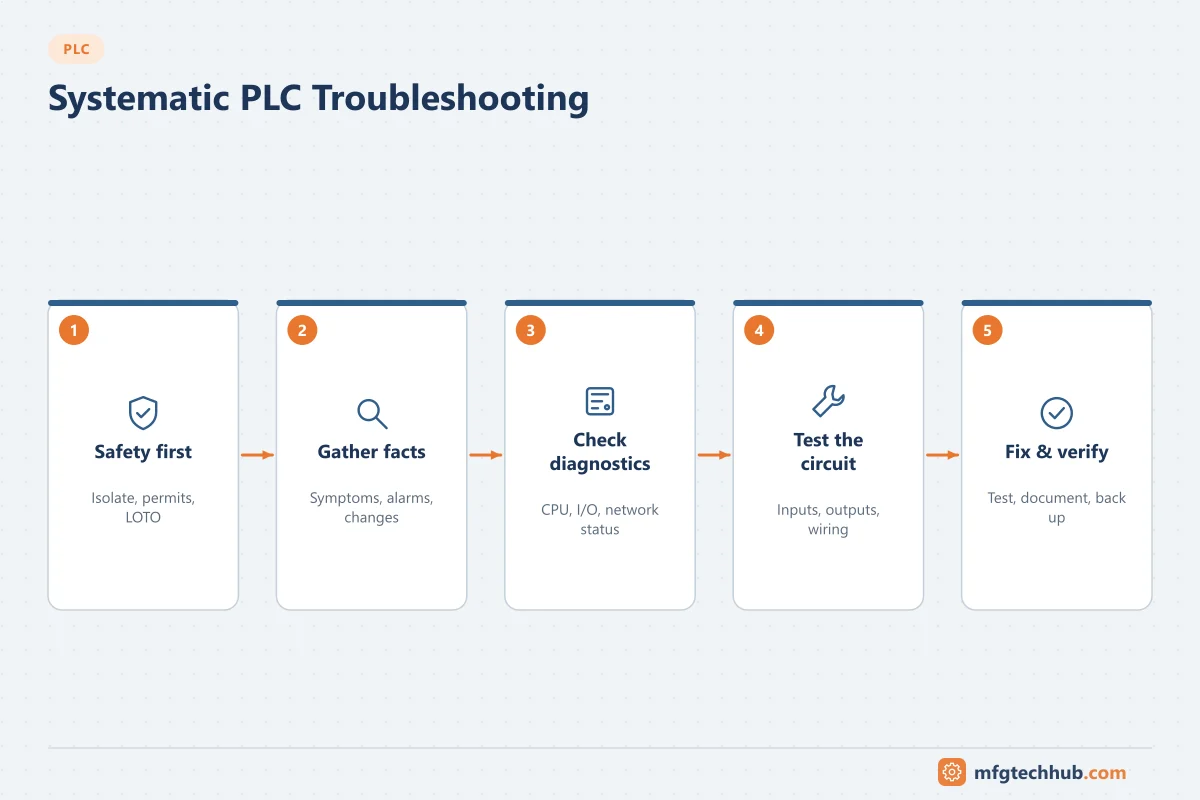
This guide gives a step-by-step method, symptom-by-symptom checks, and a preventive maintenance checklist that applies to most PLC platforms.
Safety first
- Follow your site’s lockout/tagout and permit rules before touching wiring or equipment.
- Forcing I/O or changing logic online can start machinery or open valves. Only do it with operations’ agreement, with the area clear, and remove forces afterwards.
- Never bypass safety circuits (e-stops, guard switches, safety PLC functions) to get production running.
- Take a backup of the running program before making any change.
Tools you need
| Tool | Used for |
|---|---|
| Engineering software and a laptop with the correct version | Online monitoring, diagnostic buffer, cross-references |
| Digital multimeter | Supply voltages, input/output voltages, continuity |
| Loop calibrator / mA clamp meter | Checking 4–20 mA analog loops. See Loop Calibrators |
| Network tools (switch diagnostics, ping, protocol analyser) | Communication faults |
| Drawings: electrical schematics, I/O list, network diagram | Tracing signals from the program to the field |
| Latest program backup | Comparing with the running program |
The systematic method
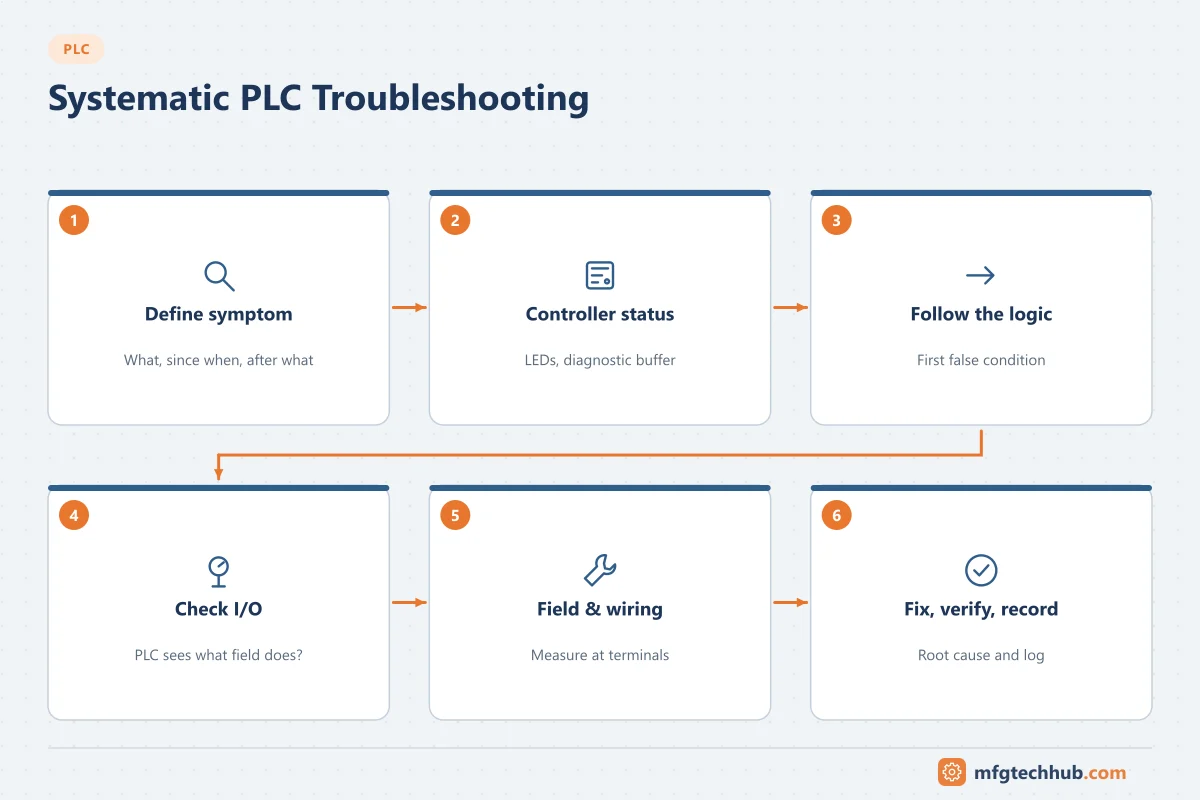
- Define the symptom precisely. What is not happening, since when, on which equipment, after what event (power dip, maintenance, program change, product change)?
- Check the controller status. RUN/STOP, fault LEDs, battery, and the CPU diagnostic buffer or fault log. It usually tells you the error type and time.
- Find where the logic stops. Go online, open the sequence or output that is not working, and follow the conditions back to the first one that is false.
- Check the I/O point. Does the PLC input status match the actual field state? Does the output turn on in the program and physically at the terminal?
- Check the field device and wiring. Measure at the terminal: voltage present, sensor switching, actuator receiving power.
- Fix the root cause, then verify the complete function, not only the one signal.
- Record the fault, cause and fix in the maintenance log so repeat problems are visible.
The key question at step 4 is “is the PLC seeing what the field is doing?” If yes, the problem is in the logic or process conditions. If no, it is in the field device, wiring or I/O module.
Troubleshooting by symptom
PLC not powering on or restarting
| Likely causes | Checks | Resolution |
|---|---|---|
| 24 V DC power supply failed or overloaded | Measure supply output under load; check supply status LED | Replace supply; find overload (short circuit in field wiring) |
| Tripped breaker or blown fuse | Check upstream protection | Reset after finding the cause |
| Voltage dips from large motor starts | Log supply voltage; check if resets coincide with starts | Separate or buffer supplies, UPS for control power |
| Loose terminals | Inspect and re-tighten to specified torque |
CPU in STOP or fault mode
- Read the diagnostic buffer: typical causes are scan-time watchdog exceeded, array index out of range, divide by zero, missing module, or memory error.
- Missing or failed module: the configured hardware no longer matches the rack.
- Battery or memory card problems on controllers that rely on them for program retention.
- After a power cycle: check whether the controller is set to restart in RUN and whether retentive data was kept.
Fix the cause shown in the log before switching back to RUN. Repeated watchdog faults usually mean a program loop or a communication block consuming too much time.
Digital input not changing
- Check the input LED on the module.
- Measure the voltage at the input terminal while operating the sensor.
- For 3-wire sensors, check PNP vs NPN type against the module (sourcing/sinking). See Proximity Sensors.
- Check sensor adjustment, target distance and dirt.
- If the terminal has correct voltage but the PLC shows no change, suspect the module or its configuration (input filter, disabled channel).
Output on in the program but the device does not operate
- Output LED on? Measure voltage at the output terminal.
- Output fuse or module overload protection tripped?
- For relay outputs, contact wear is common on high-cycle applications.
- Check the interposing relay, contactor coil or solenoid and the field wiring.
- Check that the output is not overwritten later in the program (double coil problem) or controlled by another task.
Analog value wrong, frozen or at an extreme
| Reading | Likely cause |
|---|---|
| Below 3.8 mA / under-range | Open circuit, transmitter unpowered, blown fuse |
| Above 20.5 mA / over-range | Short circuit, transmitter saturated or in failure mode |
| Stuck at a constant value | Transmitter in fixed-current or simulation mode; frozen communication |
| Correct in mA but wrong in engineering units | Scaling error in the PLC or transmitter range mismatch |
| Noisy | Shield grounding, cable routed with power cables, ground loop |
Use a loop calibrator to separate transmitter, cable and PLC problems. The 4–20 mA calculator helps check scaling and NAMUR NE 43 fault levels.
Communication failure
- Is the problem one device or all devices? One device points to that device or its cable; all devices point to a switch, the PLC port or configuration.
- Check link LEDs and switch port status and error counters.
- Confirm IP address, subnet and device name (PROFINET) or node address, and look for duplicate IP addresses.
- Check whether firmware or configuration changed recently.
- For serial networks (Modbus RTU, PROFIBUS), check termination, baud rate, parity and cable polarity.
See Industrial Communication Protocols for protocol-specific points.
Machine stops intermittently
Intermittent faults are the hardest. Useful approaches:
- Trend or log the relevant signals with timestamps, in the PLC or a historian.
- Add a first-out alarm (which condition dropped first) to the logic if it does not exist.
- Look for loose connections by gently moving cables while monitoring the signal (only where safe).
- Correlate with external events: other machines starting, shift changes, temperature, vibration.
Logic behaves unexpectedly after a change
- Compare the running program with the last known good backup.
- Check for forced I/O left active.
- Review scan order: logic that depends on a value calculated later in the scan behaves differently.
- Check retentive data and recipes: wrong setpoints often look like program faults.
Preventive maintenance checklist
| Interval (typical) | Task |
|---|---|
| Monthly | Check for active faults and forced I/O; review diagnostic logs |
| Quarterly | Inspect cabinet: cooling fans, filters, temperature, dust, moisture |
| Every 6–12 months | Check terminal tightness (thermal imaging helps), power-supply voltage and ripple |
| Annually | Verify backups can be restored; check battery status; review firmware and security advisories |
| After every change | Save and archive the program with version, date and description |
Additional good practices:
- Keep spare CPU, I/O modules and power supplies for critical lines, with compatible firmware.
- Store engineering software versions and licences with the backups.
- Keep drawings updated after every modification.
- Maintain cabinet temperature within the equipment rating; heat shortens electronics life.
Frequently asked questions
What is the most common cause of PLC faults?
Field devices and wiring: failed sensors, damaged cables, loose terminals and blown fuses. Power supply problems are next. CPU hardware failures are comparatively rare.
How do I know if a PLC input module is faulty?
Measure the voltage at the input terminal. If the correct voltage is present and the channel LED or program status does not change, and the channel is correctly configured, the module channel is likely faulty. Test with a known-good spare channel or module to confirm.
Should I use forces to troubleshoot?
Forces are useful for testing outputs and simulating inputs, but they bypass normal logic and can create hazards. Use them only with permission, with the area safe, and remove them immediately. Many sites alarm or log active forces.
Key takeaways
- Work from the outside in: power, field devices, wiring and I/O before suspecting the CPU or program.
- The diagnostic buffer and online monitoring usually point directly to the cause.
- Ask whether the PLC sees what the field is doing; that splits the problem in two.
- Preventive maintenance, backups and good documentation prevent most long outages.
Related tutorials
Before you apply this in a plant: this article is for education. Always check the current edition of the relevant standards, the manufacturer's documentation for your exact product and version, and your site's procedures. Safety-related work needs qualified personnel. See our editorial policy.