
SCADA HMI Display Design: High-Performance HMI, ISA-101, Colour, Hierarchy and Navigation
On this page
An HMI display has one job: help the operator notice abnormal situations early and respond correctly. Many older displays do the opposite. They show brightly coloured 3D equipment, spinning pumps and dozens of numbers, but make a developing problem hard to see. This design approach, often called high-performance HMI, is reflected in the standard ANSI/ISA-101.01 (Human Machine Interfaces for Process Automation Systems).
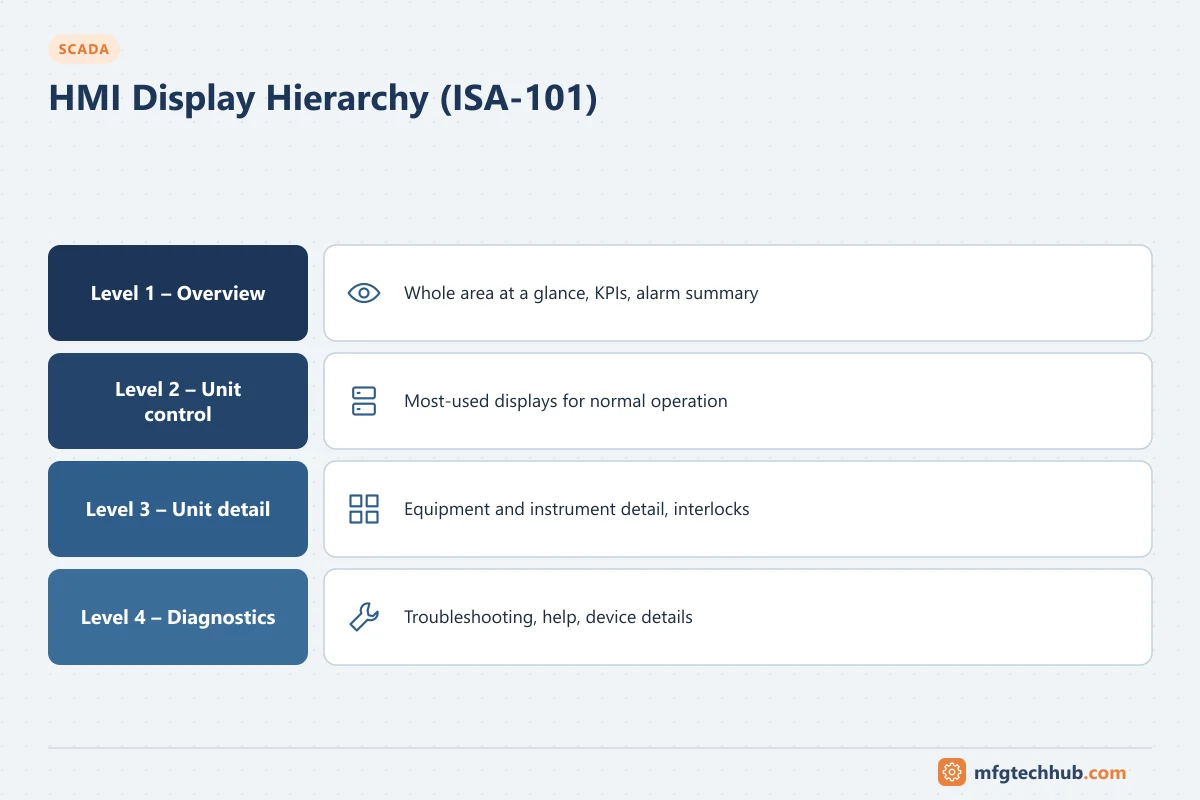
This guide covers the principles and the practical decisions involved in building or modernising SCADA displays.
Principles of high-performance HMI
| Principle | Traditional display | High-performance display |
|---|---|---|
| Colour | Bright colours everywhere; red/green for stopped/running | Muted grey background and equipment; strong colour reserved for abnormal conditions and alarms |
| Values | Numbers only | Values shown with context: analog bars with normal range, target and limits |
| Trends | Separate trend screens | Small embedded trends next to key values |
| Graphics | 3D equipment, animation, photos | Simple, flat, schematic shapes |
| Information density | Many numbers, little meaning | Fewer, more meaningful elements; derived indicators (for example “ahead/behind plan”) |
| Alarms | Colours also used for normal states | Alarm colours used only for alarms, with shape and text as well as colour |
The goal is that an operator can glance at a screen and know whether everything is normal. If a display is always colourful, nothing stands out when something goes wrong.
Colour: rules that prevent mistakes
- Reserve alarm colours (for example red, yellow/orange, and one more for the third priority) for alarms only. Never use them for normal states, buttons or decoration.
- Do not rely on colour alone. A significant share of men have some form of red–green colour vision deficiency, and displays are viewed in varying light. Combine colour with shape, text or position (for example an alarm indicator shape with the priority number).
- Running/stopped conventions differ by industry. In some power industries red means energised or closed; in some process plants green means running. Decide once in the site style guide and apply it consistently. Many high-performance designs show equipment state with fill (filled = running, outline = stopped) in neutral colours.
- Avoid blinking except for new, unacknowledged alarms.
The display hierarchy
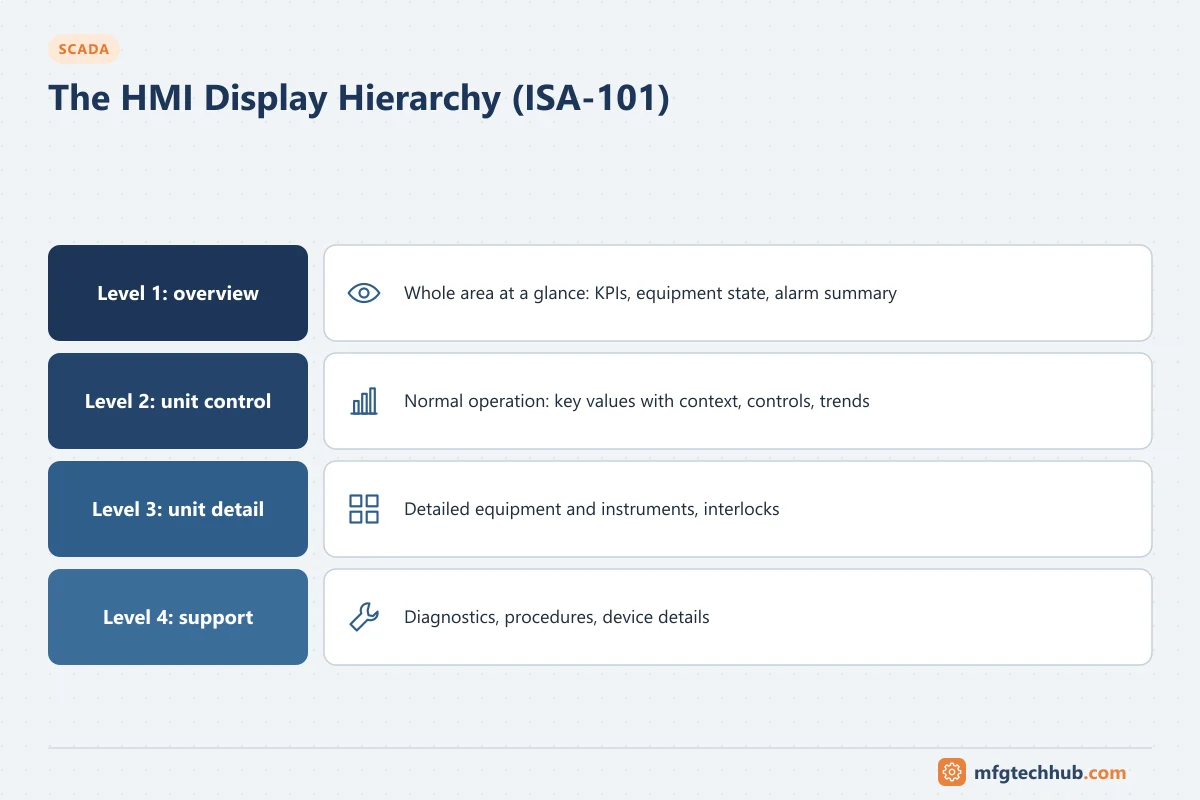
A widely used structure, described in ISA-101 and high-performance HMI literature, organises displays in levels:
| Level | Purpose | Content |
|---|---|---|
| Level 1: overview | Whole area of responsibility at a glance | Key performance indicators, major equipment state, alarm summary by area, a few key trends |
| Level 2: unit control | Normal operation of a process unit | The displays operators use most: key values with context, controls, embedded trends |
| Level 3: unit detail | Detail for diagnosis and less frequent tasks | Detailed equipment and instrument displays, interlocks |
| Level 4: support and diagnostics | Troubleshooting and help | Diagnostics, procedures, help, device details |
Design Level 1 and Level 2 displays from operator tasks, not from the P&ID. A P&ID-style drawing of every pipe is rarely the best display for running a process. See P&ID Introduction for the drawing itself.
Showing values with context
- Analog indicators: a horizontal or vertical bar with the normal operating range shaded, alarm limits marked and the current value as a pointer. An operator sees immediately whether a value is normal, drifting or near a limit, without reading a number.
- Embedded trends (sparklines): a short trend next to key values shows direction and rate of change.
- Engineering units and resolution: show units, and only as many decimals as the measurement justifies.
- Quality: show bad or stale data clearly (for example a hatched value or a question mark), so operators do not act on invalid values. See Bad Tag Quality and Communication Failures.
Faceplates and controls
- Use standard faceplates for each equipment type (motor, valve, PID loop, analog input) with mode, state, commands, interlock status and alarm limits.
- Show why a command is blocked (missing permissive, active interlock).
- Confirm significant commands and prevent double commands. See SCADA Control and Command Functions.
- Group controls with the values they affect; avoid control buttons far from the equipment they operate.
- For PID loops, show process value, setpoint, output and mode together; see PID Control.
Navigation
- Consistent navigation on every display: overview, area, previous display, alarm summary.
- Direct navigation from an alarm to the display and faceplate where the operator can respond.
- Keep the number of clicks to reach any Level 2 display small, and avoid deep menu trees.
- Design for the actual screens used: resolution, multiple monitors, large overview screens and, where used, mobile or web clients.
The ISA-101 HMI lifecycle
ISA-101 treats the HMI as something to be managed over its life, not a one-time drawing exercise:
- HMI philosophy: principles and goals for the site.
- Style guide: colours, symbols, fonts, layouts, navigation and alarm presentation.
- Toolkit: a library of standard objects and faceplates built from the style guide.
- Requirements: operator tasks and functional needs for each area.
- Design, implementation and testing: displays built from the toolkit and tested with operators.
- Operation, maintenance and management of change: keep displays consistent as the plant changes, and audit periodically.
The style guide and toolkit are what keep hundreds of displays consistent across projects and integrators. Without them, every new display drifts.
Modernising an existing HMI
- Start with a display audit: list displays, colour use, navigation and operator complaints.
- Write the style guide and build the toolkit before redrawing screens.
- Redesign the most-used displays (usually Level 2) first, with operators involved.
- Combine with alarm rationalisation: alarm presentation and alarm quality work together. See SCADA Alarm Management.
- Train operators and collect feedback before rolling out further.
Common mistakes
| Mistake | Effect | Better approach |
|---|---|---|
| Red/green for normal equipment states | Alarm colours lose meaning | Neutral states; colour reserved for alarms |
| Dark or brightly coloured backgrounds with saturated graphics | Abnormal conditions do not stand out | Muted grey background with low-contrast static graphics |
| Numbers without ranges or trends | Operator cannot judge normal vs abnormal quickly | Analog indicators and embedded trends |
| Animated 3D graphics | Distracting, slow to render, no added information | Simple flat shapes |
| Every display designed differently | Errors when operators move between areas | Style guide and standard toolkit |
| Command buttons without confirmation or interlock information | Wrong or unexplained commands | Standard faceplates with confirmation and interlock display |
Frequently asked questions
What is a high-performance HMI?
A display design approach that uses muted colours, values with context, embedded trends and a structured display hierarchy so operators can see abnormal situations quickly. It is reflected in ANSI/ISA-101.01.
Why are modern HMI displays grey?
A neutral grey background and equipment make normal operation look calm, so the few elements shown in strong colour (alarms and abnormal conditions) stand out immediately.
What should be in an HMI style guide?
Colours and their meaning, alarm presentation, symbols and equipment states, fonts and number formats, layout grids, navigation, faceplate designs and rules for trends and analog indicators.
Key takeaways
- Design displays so that abnormal situations stand out and normal operation looks calm.
- Reserve colour for alarms and abnormal conditions, and never rely on colour alone.
- Organise displays in a hierarchy based on operator tasks, and show values with ranges and trends.
- Manage the HMI with a philosophy, style guide and toolkit through its lifecycle (ISA-101).
Related tutorials
Before you apply this in a plant: this article is for education. Always check the current edition of the relevant standards, the manufacturer's documentation for your exact product and version, and your site's procedures. Safety-related work needs qualified personnel. See our editorial policy.