
OT Network Troubleshooting: A Layer-by-Layer Method for Connectivity, Firewall, DNS and Switch Problems
On this page
When a PLC, HMI, historian or MES “cannot connect”, the cause can be anywhere from a damaged cable to a firewall rule, a duplicate IP address or a DNS entry. A structured, layer-by-layer approach finds it faster than guessing, and avoids creating new problems on a live control network.
Safety first on OT networks
- Avoid aggressive network scanning (for example broad port scans) on control networks without approval; some older devices can crash or behave unpredictably.
- Coordinate with operations before changing switch or firewall configurations, disconnecting cables or mirroring high-traffic ports.
- Use passive methods (switch diagnostics, port mirroring, logs) wherever possible.
- Record every change so it can be reversed.
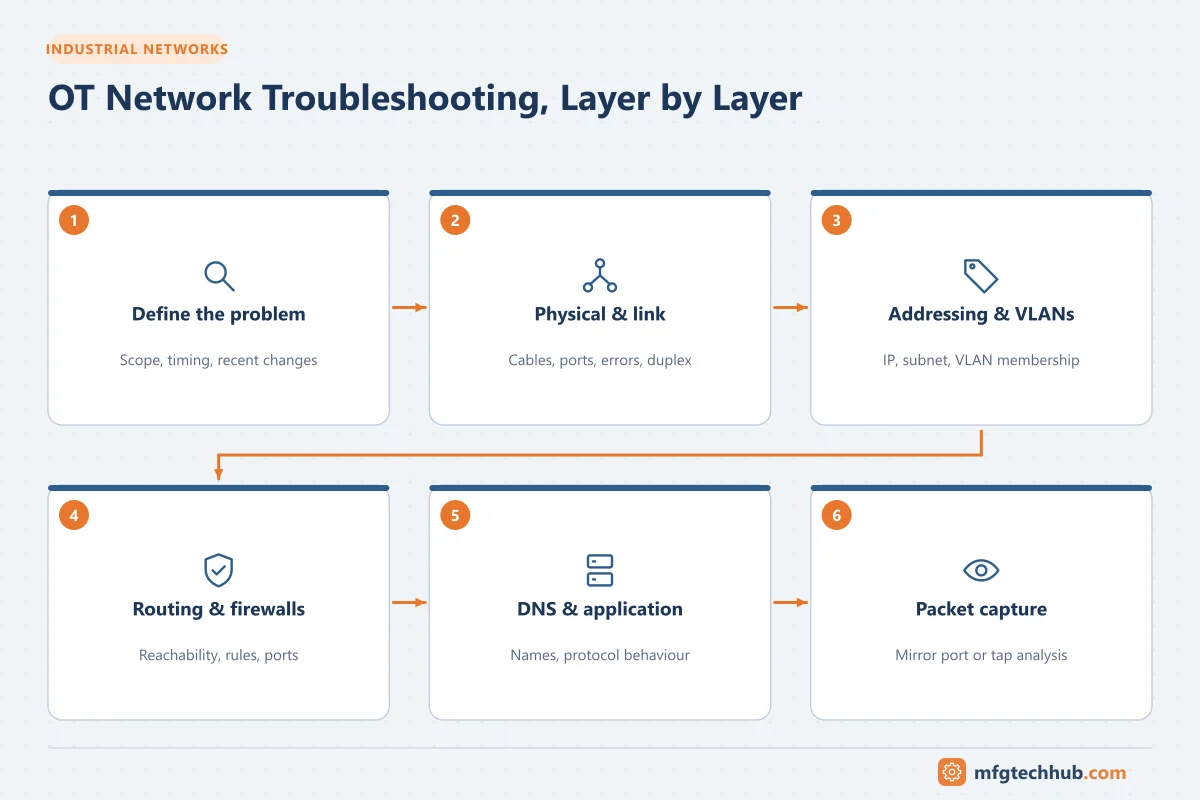
Step 1: Define the problem
- Which source cannot reach which destination, using which protocol and port?
- Is it one device, one area or everything?
- Did it ever work? What changed (new device, firmware, firewall rule, switch replacement, IP change, certificate renewal)?
- Is it constant or intermittent?
Step 2: Physical and link layer
| Check | How | What it reveals |
|---|---|---|
| Link LEDs | Device and switch ports | No link: cable, connector, port or power problem |
| Switch port status and speed/duplex | Switch management interface | Duplex mismatches cause errors and slow, intermittent communication |
| Error counters (CRC, alignment, drops) | Switch port statistics | Rising CRC errors point to cabling, connectors or EMC problems |
| Cable test | Cable tester or switch cable diagnostics | Breaks, shorts, excessive length |
| Redundancy status | Ring manager or redundancy protocol status | Broken ring segments, misconfigured redundancy |
In plants, damaged cables, poorly terminated connectors and cables routed next to power cables cause a large share of intermittent faults. See Grounding and Earthing.
Step 3: Addressing and VLANs
| Check | How |
|---|---|
| Device IP, subnet mask, gateway | Device configuration, engineering tool, or ipconfig / ip addr on PCs |
| Duplicate IP addresses | ARP tables (arp -a), switch MAC tables, device warnings |
| Correct VLAN on the switch port | Switch configuration (access VLAN, trunk allowed VLANs) |
| Subnet overlaps | IP address register |
A device in the wrong VLAN or with the wrong subnet mask is a common cause after device replacements.
Step 4: Reachability and routing
- Ping tests basic IP reachability, but ICMP is often blocked by firewalls; a failed ping does not prove the application cannot connect.
- Traceroute (
tracerton Windows,tracerouteon Linux) shows where packets stop between subnets. - Check routes and default gateways on both sides; replies need a route back (asymmetric routing through different firewalls breaks stateful connections).
- NAT changes addresses; confirm which address each side must use.
Step 5: Port and firewall checks
Test the actual application port rather than only ping:
| Tool | Example |
|---|---|
| PowerShell | Test-NetConnection 10.1.20.15 -Port 4840 (OPC UA example) |
| Linux | nc -vz 10.1.20.15 502 (Modbus TCP example) |
Then check the firewall logs for denied traffic between the two addresses, and compare with the documented firewall matrix. Typical problems:
- Rule missing for a new server or changed IP
- Rule allows the port in one direction only
- Idle session timeouts dropping long-lived industrial connections (keep-alive settings help)
- Protocols with dynamic ports (for example classic OPC DA/DCOM) not handled
See Industrial Network Design for OT Engineers and MES Infrastructure and Networking.
Step 6: Name resolution (DNS)
- If connections use hostnames, test resolution with
nslookup hostname(orResolve-DnsNamein PowerShell). - Stale DNS records after server migrations point clients to old addresses.
- Local hosts files on OT PCs can override DNS silently; check them.
- Certificates must match the name used to connect. See OPC UA Certificate Errors.
Step 7: Application layer
Once the network path works, the remaining problem is usually in the application:
- Authentication and certificates
- Connection limits on the device
- Wrong protocol settings (unit ID, rack/slot, device name, endpoint)
- Time synchronisation issues. See Time Synchronisation in OT
Protocol-specific guides: Modbus, PROFINET, EtherNet/IP, OPC UA, MQTT.
Packet capture
When the cause is still unclear, capture traffic:
- Use port mirroring (SPAN) on a managed switch or a network tap, to capture without inserting a device into the path.
- Analyse with a protocol analyser such as Wireshark, which decodes many industrial protocols.
- Look for: TCP connection attempts without replies (firewall or routing), resets (application refusing), retransmissions (packet loss), and protocol-level error codes.
- Treat captures as sensitive data; they can contain credentials and process information.
Common patterns and causes
| Pattern | Likely cause |
|---|---|
| Worked until a device was replaced | IP, VLAN, device name, firmware or certificate differences |
| Worked until a server was migrated | DNS, firewall rules, certificates, hostnames in configurations |
| Intermittent drops on many devices | Multicast flooding, broadcast storms, failing switch, cabling or EMC |
| Works from one PC but not another | Local firewall, routing, VLAN, credentials, hosts file |
| Connection drops after minutes of idle time | Firewall or NAT session timeout |
| Slow at specific times | Backups, antivirus scans or large transfers on shared links |
Frequently asked questions
Why can I ping a device but not connect to it?
Ping only tests IP reachability with ICMP. The application port may be blocked by a firewall, the service may not be running, the device may have reached its connection limit, or authentication may fail. Test the actual port and check firewall and device logs.
Is it safe to scan OT networks with network scanners?
Aggressive scans can disrupt fragile industrial devices. Use passive methods first and only perform active scans with approval, appropriate settings and during low-risk periods.
What is port mirroring?
A switch feature that copies traffic from one or more ports to a monitoring port, so a protocol analyser or intrusion detection system can observe traffic without being in the communication path.
Key takeaways
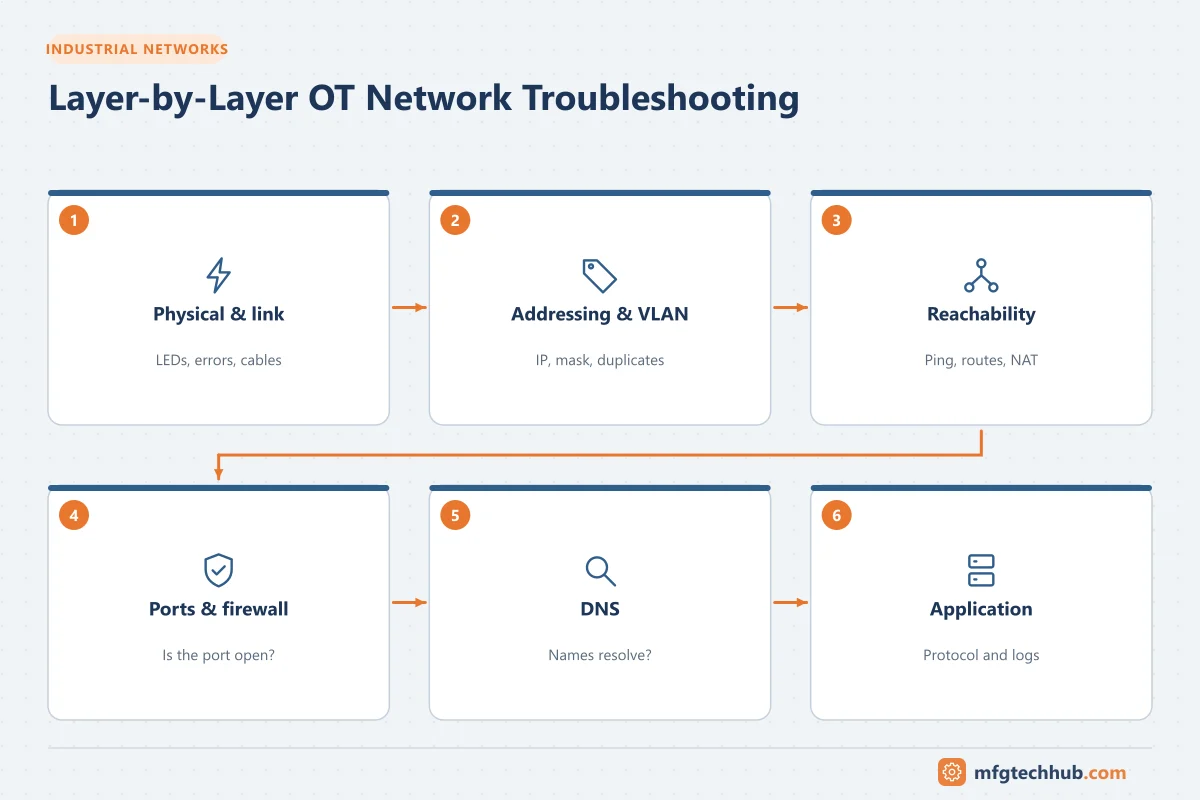
- Troubleshoot layer by layer: physical, addressing and VLANs, routing, ports and firewalls, DNS, application.
- Test the real application port, not just ping, and read firewall and device logs.
- Use passive tools and port mirroring on live OT networks; avoid aggressive scanning.
Related tutorials
Before you apply this in a plant: this article is for education. Always check the current edition of the relevant standards, the manufacturer's documentation for your exact product and version, and your site's procedures. Safety-related work needs qualified personnel. See our editorial policy.